
How to use RaceCrewAI
Give every session
a clear direction.
Prepare with Max, ask your AI crew and review your driving data.
Find one useful focus for your next session.
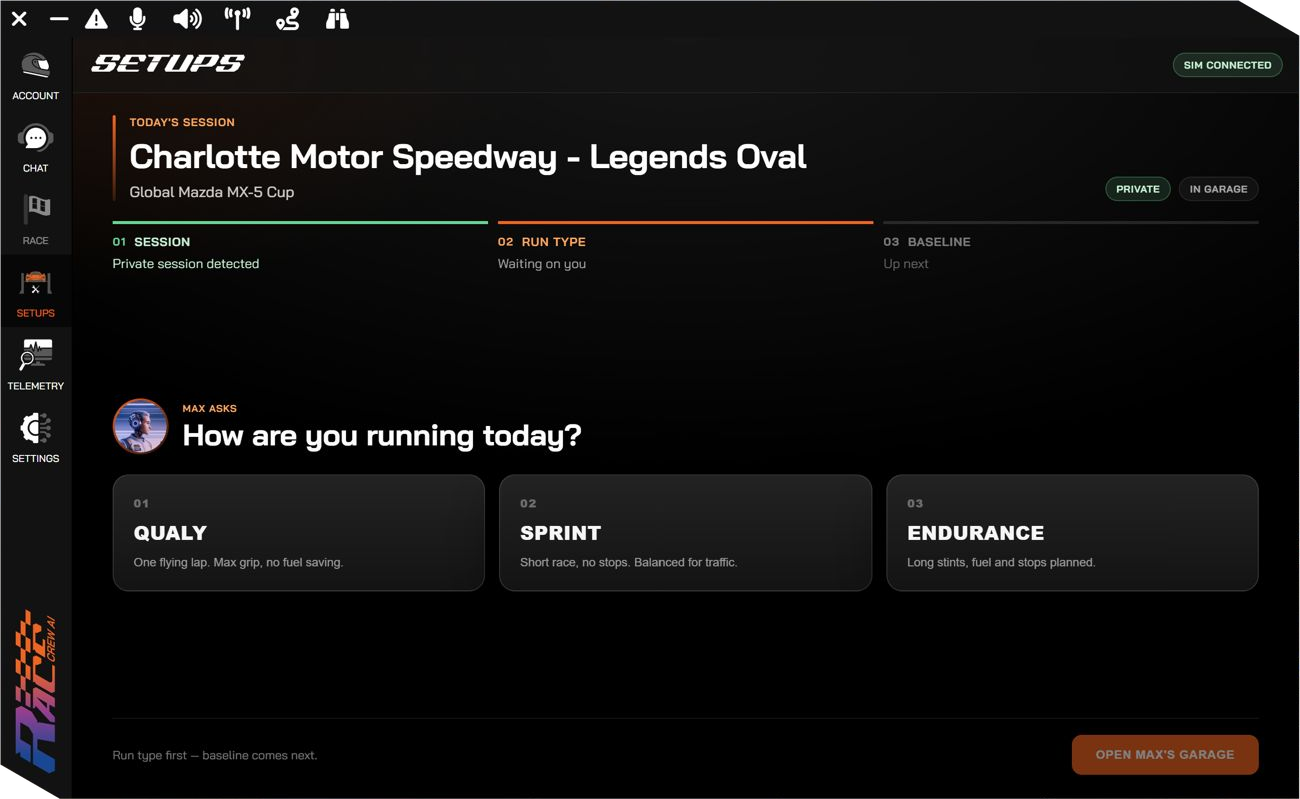
01 / Prepare
Start with a purpose.
Choose your session and work through setup guidance with Max. Bring your car, track and feedback into the conversation.
Setups starts with a private iRacing session.
Try a focus: balance, consistency or confidence.
02 / Drive
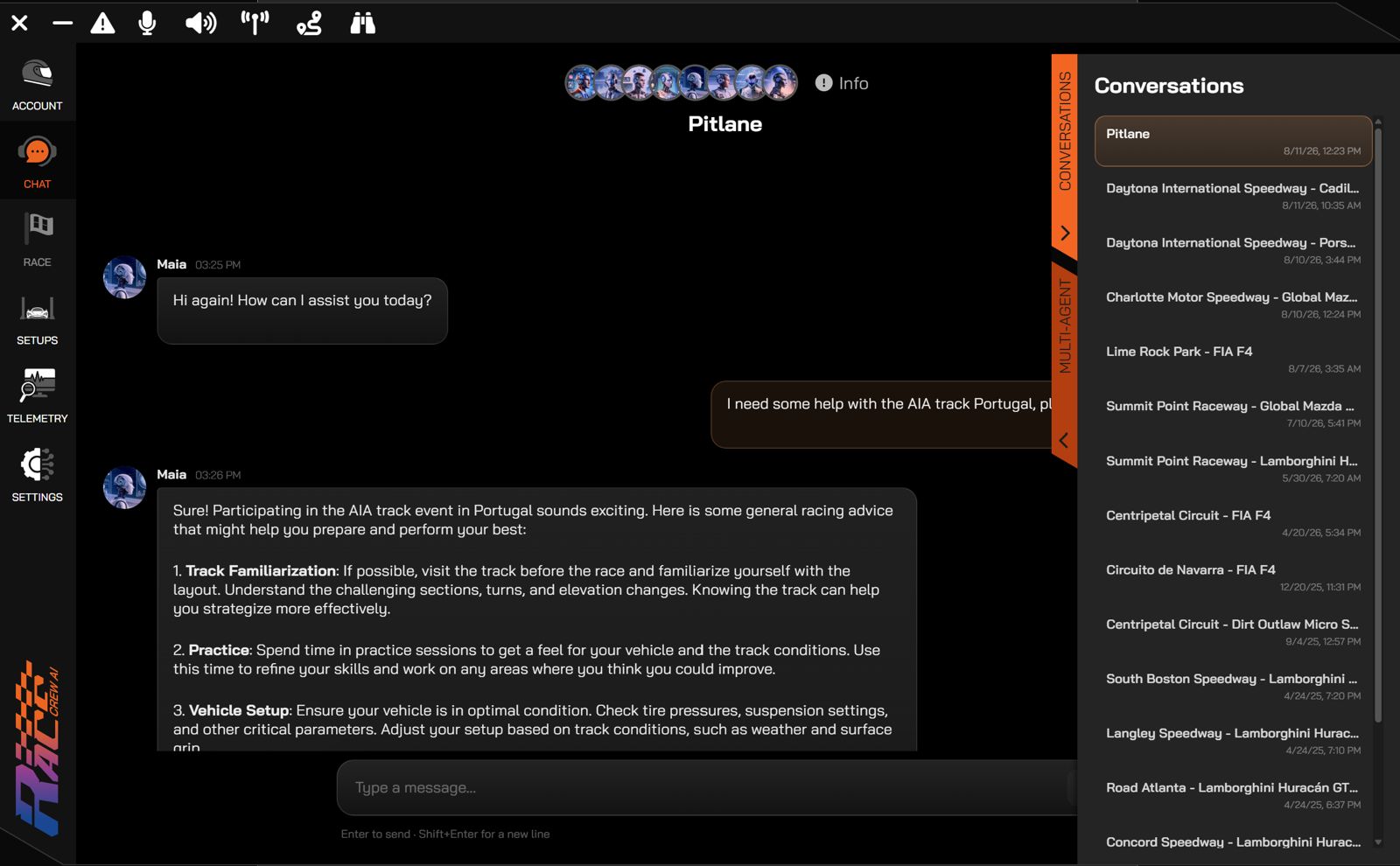
Ask a better question.
Use Pitlane to explore questions with your AI crew. Add your car, track and what you are experiencing for a more useful conversation.
The context available depends on your session. Use chat or voice when it is safe to do so.
03 / Improve
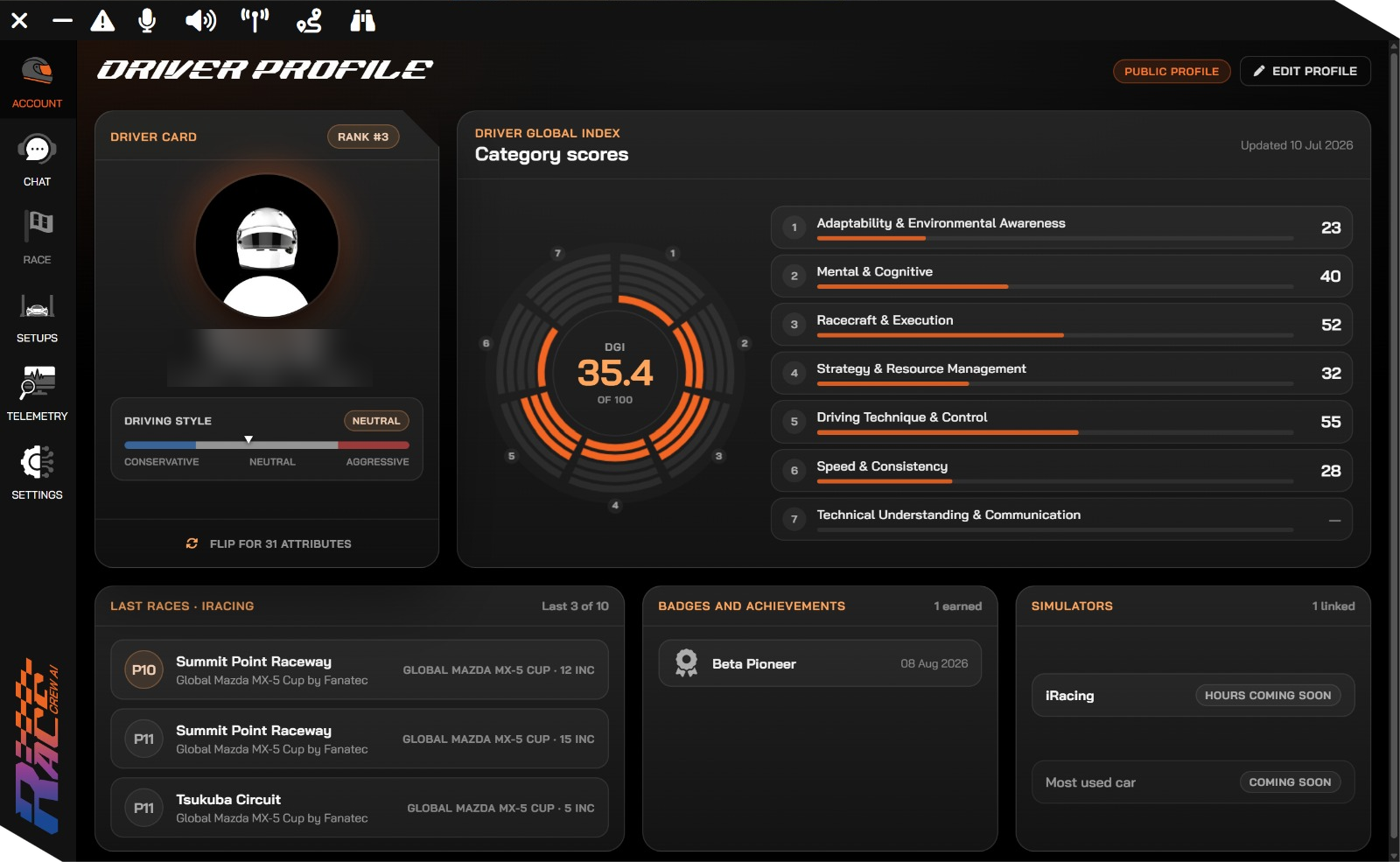
Review. Choose. Repeat.
Explore your lap data and Driver Profile. Look for patterns and choose a focus to take back on track.
Insights depend on the data available. Your profile and scores develop as data becomes available.
Keep your racing circle close.
Add friends with an invite code. Create or join a team in the app.
Your first session starts here.
Create your account
Install the app
Sign in
Enter the access code sent to your email.
Connect iRacing
Open a session and choose your first focus.
Requirements and connection help
Start with Windows and iRacing
Download and install the Windows app, then sign in with the access code sent to your email. iRacing is the currently supported simulator; other simulator integrations are not yet available.
Follow the iRacing connection prompts in the app. For setup guidance, enter a private iRacing session, open Setups and choose the run type before working through the baseline with Max.
If prompted, complete your basic Driver Profile and choose its visibility. Creating a profile does not mean that every score is already available.
If the app cannot detect your session, check the connection status and that iRacing is running. Still stuck? Open the support portal with your app version and the step you reached.
What if I need a hand?
A useful question gives your crew some context
Try: “I am driving this car at this track, and the rear feels unstable under braking. What should I check first?” Describe what happens, where it happens and what you have already tried.
Change one thing at a time, try another run and review the result. AI guidance can be incomplete or incorrect, so use your judgement and check it against your driving data.
For account, installation or connection problems, use the support portal. If you cannot sign in, contact us. For general questions, read the FAQ.
Friends, teams and sharing a lap
Add a friend
Open Account → Friendship, generate an invite code and send it to the other driver. They choose “Got a code?” and redeem it. The connection is added straight away — there is no separate request to accept.
A friend code is single-use and expires after 24 hours. If it has expired or has already been used, generate a new one.
Create or join a team
In Account → Teams, create a team with its name and type, or join with a team invite code. View the team overview, members and in-app notifications. In Settings → Teams, manage the members and invitations available to your permission level.
Team permissions — Lead, Admin and Member — are separate from roles such as Driver or Coach. Team invite codes can have different expiry and usage limits; ask the sender for a new code if yours no longer works.
Share a lap from Telemetry
The Telemetry toolbar has a separate code-based lap-sharing flow. Select a lap to share or enter a code to import a shared lap, then check the import confirmation and compatible session context.
This is separate from adding a friend or joining a team. Sharing telemetry and setups directly from Friends, team Squads and Shared Resources are still marked “Coming soon”.
Ready for your next session?
Find a clearer focus and get more from your time on track.